> ## Documentation Index
> Fetch the complete documentation index at: https://developer.z-api.io/llms.txt
> Use this file to discover all available pages before exploring further.
# Send image
> Send an image to a contact or group on WhatsApp
## Overview
Method responsible for sending images to your chats. You can work with images in 2 ways:
* **By Link**: if you have the image hosted somewhere on the internet, just send the image link;
* **By Base64**: if you want to send the image in Base64 format.
If you choose Base64, before the binary you need to add the following expression: **data:image/png;base64,** followed by your Base64 code.
Tools to convert images to Base64:
* [base64-image.de](https://www.base64-image.de/)
* [base64.guru](https://base64.guru/converter/encode/image)
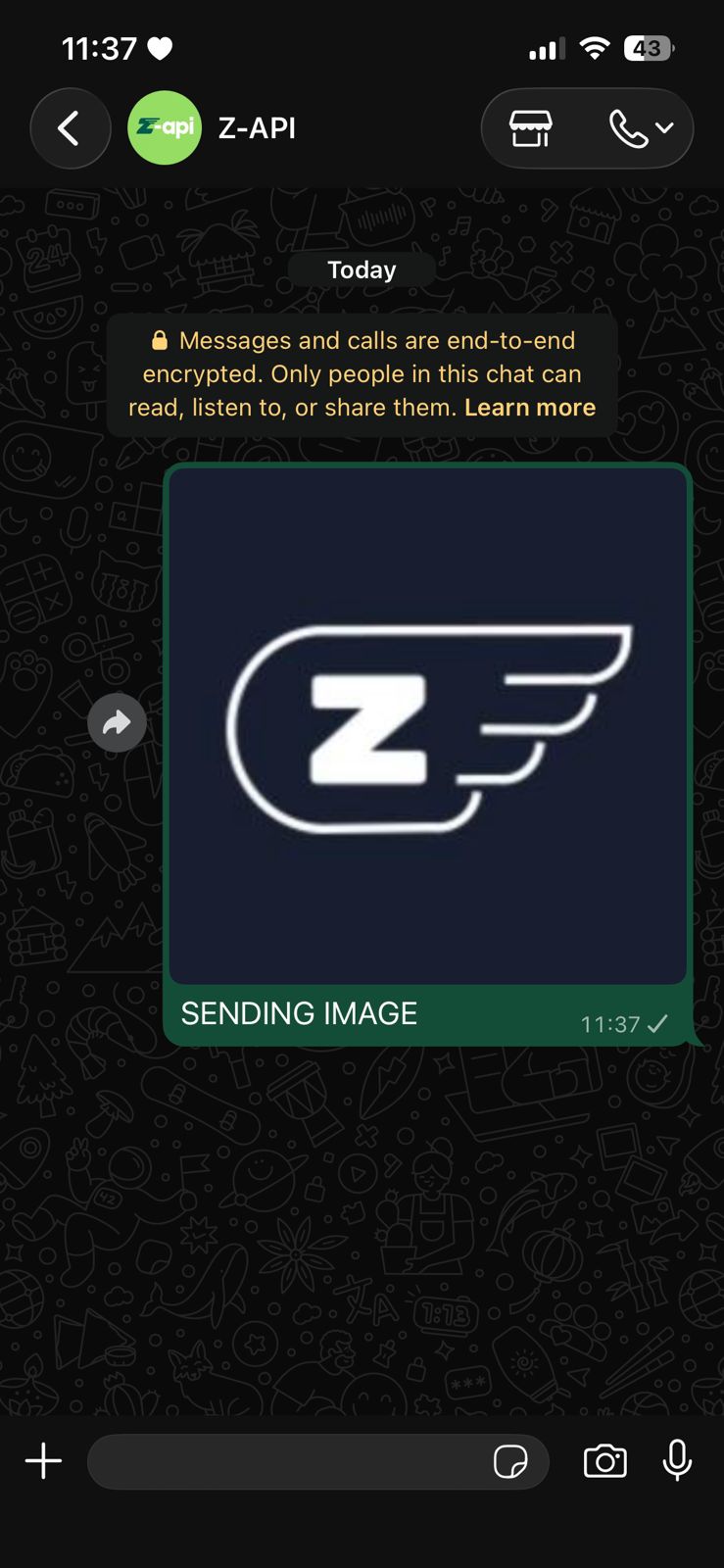
#### Example on WhatsApp
***
## Attributes
### Header
Your instance ID. Available in the Z-API panel under **Instances**.
Your Z-API instance token.
### Required
Recipient's phone number (or group ID for group messages) in DDI DDD NUMBER format. E.g.: 551199999999
Image link or Base64
### Optional
Message to send along with the image
Attribute used to reply to a chat message, just add the messageId of the message you want to reply to
Delay added to the message. You can choose between a range of 1 to 15 sec, meaning how many seconds it will wait before sending the next message. (E.g.: "delayMessage": 5). The default delay if not provided is 1 to 3 sec
Whether it will be a view-once message or not
Allows editing the message caption of a previously sent image. It is required to configure the webhook before using this feature.
***
## Request Body
**By link:**
```json theme={"theme":{"light":"github-light","dark":"poimandres"}}
{
"phone": "5511999999999",
"image": "https://www.z-api.io/wp-content/themes/z-api/dist/images/logo.svg",
"caption": "Logo",
"viewOnce": false
}
```
**By Base64:**
```json theme={"theme":{"light":"github-light","dark":"poimandres"}}
{
"phone": "5511999999999",
"image": "data:image/png;base64,iVBORw0KGgoAAAANSUhEUgAAAyAAAAMgCAIAAABUEpE...",
"caption": "Logo",
"viewOnce": false
}
```
***
## Response
### 200
```json theme={"theme":{"light":"github-light","dark":"poimandres"}}
{
"zaapId": "3999984263738042930CD6ECDE9VDWSA",
"messageId": "D241XXXX732339502B68",
"id": "D241XXXX732339502B68"
}
```
### 405
Make sure you are correctly sending the method specification, that is, verify that you sent POST or GET as specified at the beginning of this topic.
### 415
If you receive a 415 error, make sure to add the "Content-Type" header to your request, which in most cases is "application/json".