> ## Documentation Index
> Fetch the complete documentation index at: https://developer.z-api.io/llms.txt
> Use this file to discover all available pages before exploring further.
# Send plain text
> Sends a plain text message to a contact or group on WhatsApp.
## Overview
With this method you can send plain text messages, and enhance them using text formatting and emojis. If you don't know how to do it yet, follow the links below:
* To learn how to format text in WhatsApp [click here](https://faq.whatsapp.com/general/chats/how-to-format-your-messages/?lang=en)
* You can also use **line breaks** in your messages. Depending on your platform and programming language, use one of the following:
> * \n
> * \r
> * \r\n
> * %0a
Check which one works best for your case.
**If you find a new way to break lines, please let us know :)**
* You can also use emojis in your messages. Need some? Use this [link](https://fsymbols.com/emoji/).
**About emojis**
An emoji is a regular ASCII character — just like any font. You can copy and paste any emoji directly into your text! Feel free to use this one 🤪 if you want.
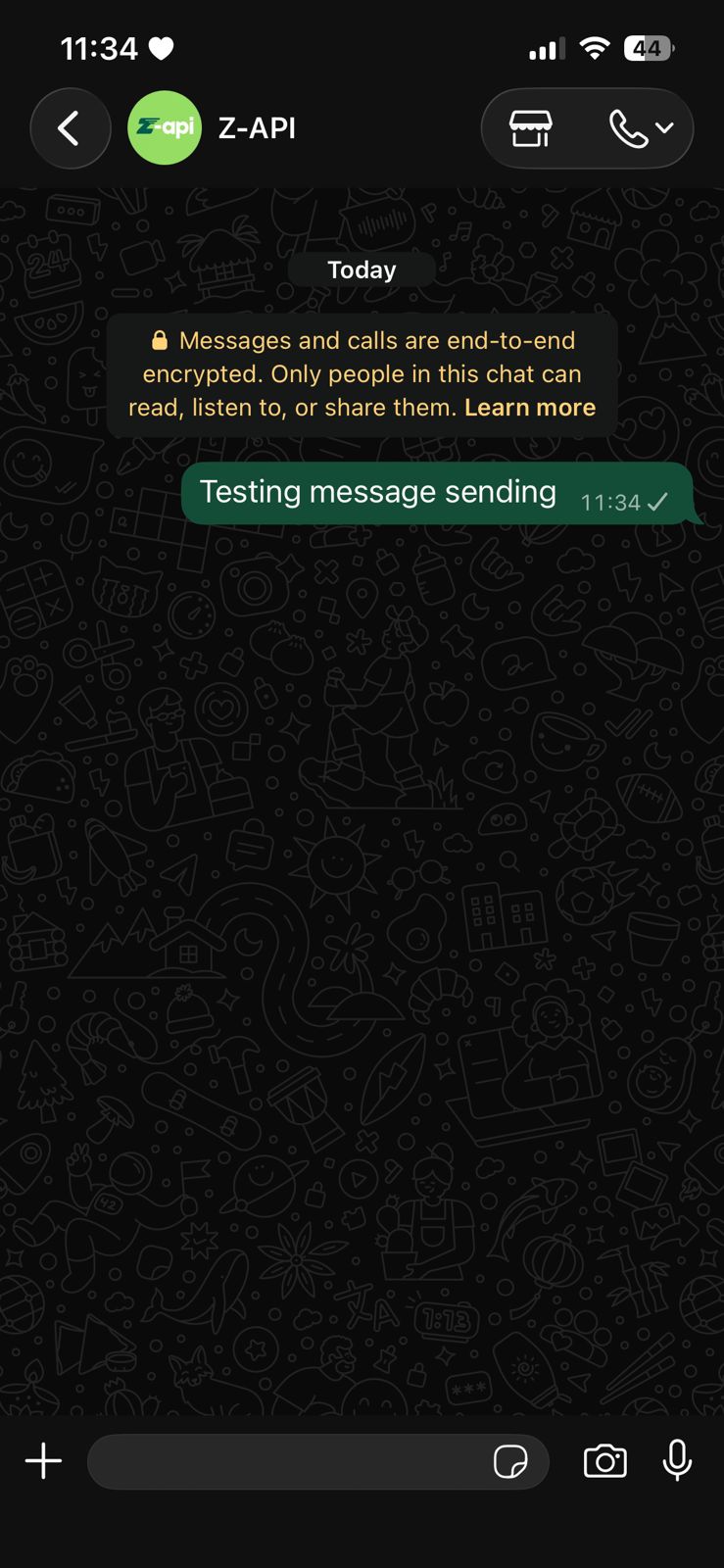
#### Example on WhatsApp
***
## Attributes
### Required
Your instance ID. Available in the Z-API panel under **Instances**.
Your Z-API instance token.
Recipient's phone number (or group ID) in the format CountryCode AreaCode NUMBER. Ex: 5511999999999. **IMPORTANT** Send numbers only, no formatting or mask.
Text to be sent
### Optional
Adds a delay before sending the message. You can set a range of 1–15 seconds. (Ex.: "delayMessage": 5). Default delay if not set: 1–3 sec.
Sets how many seconds the "Typing..." status will show before sending. Range: 1–15 sec. (Ex.: "delayTyping": 5). Default: 0.
Allows editing a previously sent WhatsApp message. Use the message ID and new content in the JSON. Webhook must be configured before editing.
***
## Request Body
```json theme={"theme":{"light":"github-light","dark":"poimandres"}}
{
"phone": "5511999999999",
"message": "Welcome to *Z-API*"
}
```
***
## Response
### 200
Message ID in Z-API
Message ID in WhatsApp
Added for Zapier compatibility, it has the same value as messageId
```json theme={"theme":{"light":"github-light","dark":"poimandres"}}
{
"zaapId": "3999984263738042930CD6ECDE9VDWSA",
"messageId": "D241XXXX732339502B68",
"id": "D241XXXX732339502B68"
}
```
### 405
Make sure you are sending the correct HTTP method — verify that you are using POST or GET as specified at the top of this page.
### 415
If you receive a 415 error, make sure to add `Content-Type: application/json` to your request headers.
***
## Webhook Response
Link to the webhook response (on receive)
[Webhook](/en/webhooks/on-message-received)