> ## Documentation Index
> Fetch the complete documentation index at: https://developer.z-api.io/llms.txt
> Use this file to discover all available pages before exploring further.
# Extension connection for partners
> How to implement the extension token generation flow in your platform
## Overview
On some devices, WhatsApp now requires a passkey security verification to authorize new WhatsApp Web connections. When this happens, the end customer **cannot connect** the Z-API instance through the traditional QR Code flow.
This behavior **does not affect all devices**. Therefore, do not replace the standard connection flow — implement the extension connection as an **alternative option**, displayed only when the customer reports difficulties connecting.
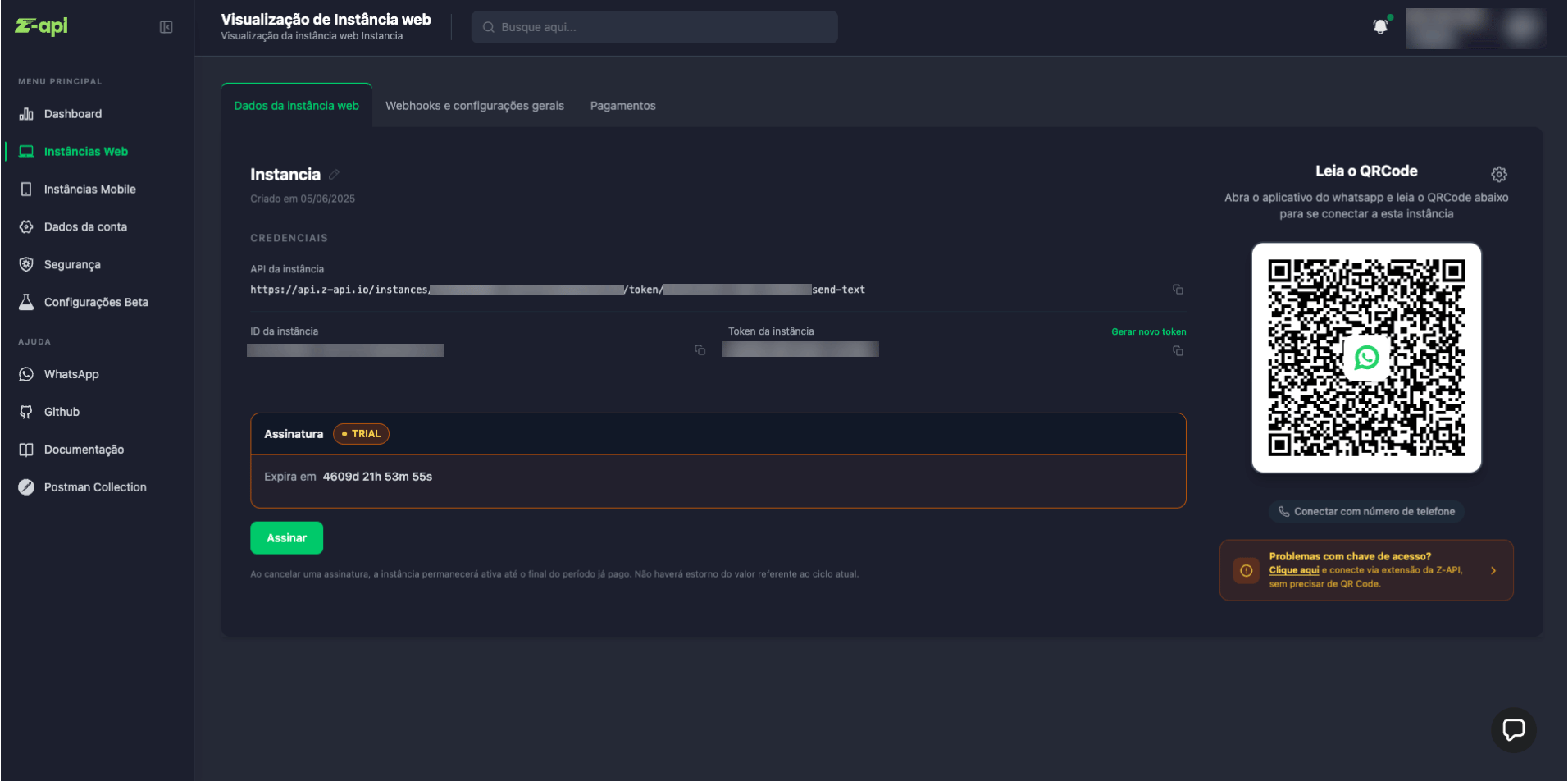
The recommendation is to follow the same pattern as the Z-API dashboard: display a "connection problems" notice or banner that, when clicked, starts the extension code generation flow. See the example below:
This way, customers who can connect normally are not impacted, and those who need the extension have a clear path to resolve it.
***
## Partner responsibility
The responsibility flow is as follows:
1. **Partner** → calls the Z-API [`extension-token`](/en/instance/extension-token) endpoint to generate the code
2. **Partner** → displays the generated code in their own interface to the customer
3. **End customer** → uses the code in the [Z-API Conector](https://chromewebstore.google.com/detail/iopmkohngoecmepoheapifkafbeomphn) extension to connect the instance
Token generation is the partner's responsibility. The end customer should never have direct access to instance credentials (instanceId and token).
***
## How to generate the token
Make an authenticated request to the token generation endpoint for your customer's instance:
```bash theme={"theme":{"light":"github-light","dark":"poimandres"}}
curl --location 'https://api.z-api.io/instances/{instanceId}/token/{instanceToken}/extension-token' \
--header 'Client-Token: YOUR_CLIENT_TOKEN'
```
**Response:**
```json theme={"theme":{"light":"github-light","dark":"poimandres"}}
{
"token": "FA48-HS63",
"expiresAt": 1782851138085
}
```
Connection code to be displayed to the end customer (format `XXXX-XXXX`)
Unix timestamp (in milliseconds) with the code expiration date
The token has a limited validity period. Show the remaining time to the customer and offer the option to generate a new code if it expires before being used.
Full endpoint documentation: [Generate extension token](/en/instance/extension-token)
***
## What to display to the customer
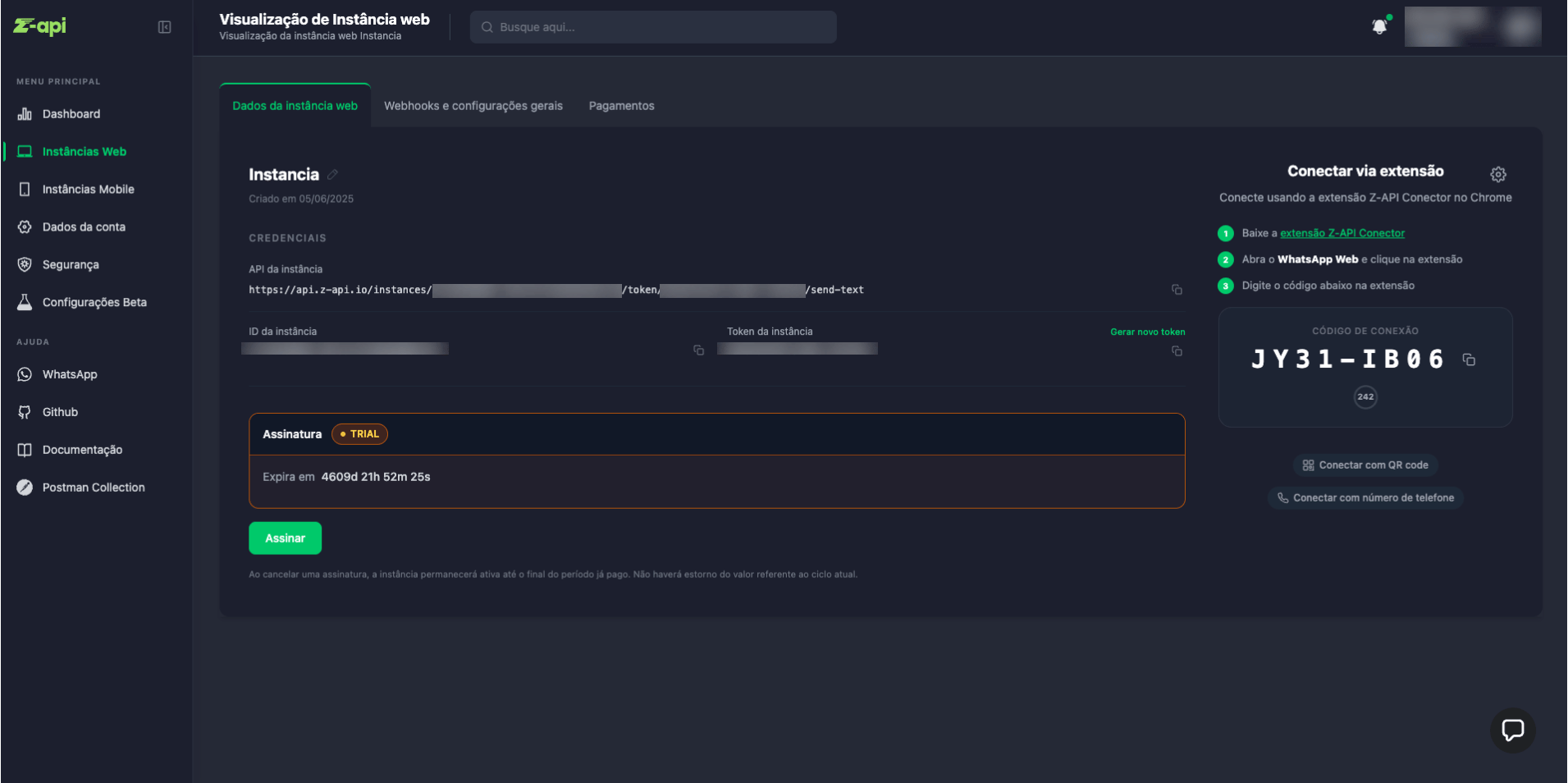
Below is an example of how the Z-API dashboard itself displays the code to the customer — use it as a reference when implementing on your platform:
Your interface should present the customer with:
* The generated **connection code** (e.g. `FA48-HS63`) with a copy option
* A **countdown timer** showing the remaining validity time
* The **link to install** the [Z-API Conector](https://chromewebstore.google.com/detail/iopmkohngoecmepoheapifkafbeomphn) extension
* The **steps** the customer should follow after receiving the code:
1. Install the Z-API Conector extension on Chrome
2. Open [https://web.whatsapp.com/](https://web.whatsapp.com/) logged in with the number to connect
3. Click the extension icon and type the code
4. Confirm on the extension screen to complete the connection
***
## What the customer does with the code
After receiving the code generated by your platform, the customer should follow the steps below:
### 1. Install the Z-API Conector extension
If not yet installed, the customer goes to the Chrome Web Store and installs the [Z-API Conector](https://chromewebstore.google.com/detail/iopmkohngoecmepoheapifkafbeomphn) extension.
### 2. Open WhatsApp Web logged in with the number to connect
The customer opens **[web.whatsapp.com](https://web.whatsapp.com/)** in Chrome, already logged in with the number that should be linked to the Z-API instance.
The number open in WhatsApp Web must be the same one that will be connected to the instance. The extension automatically detects the logged-in number.
### 3. Enter the code in the extension
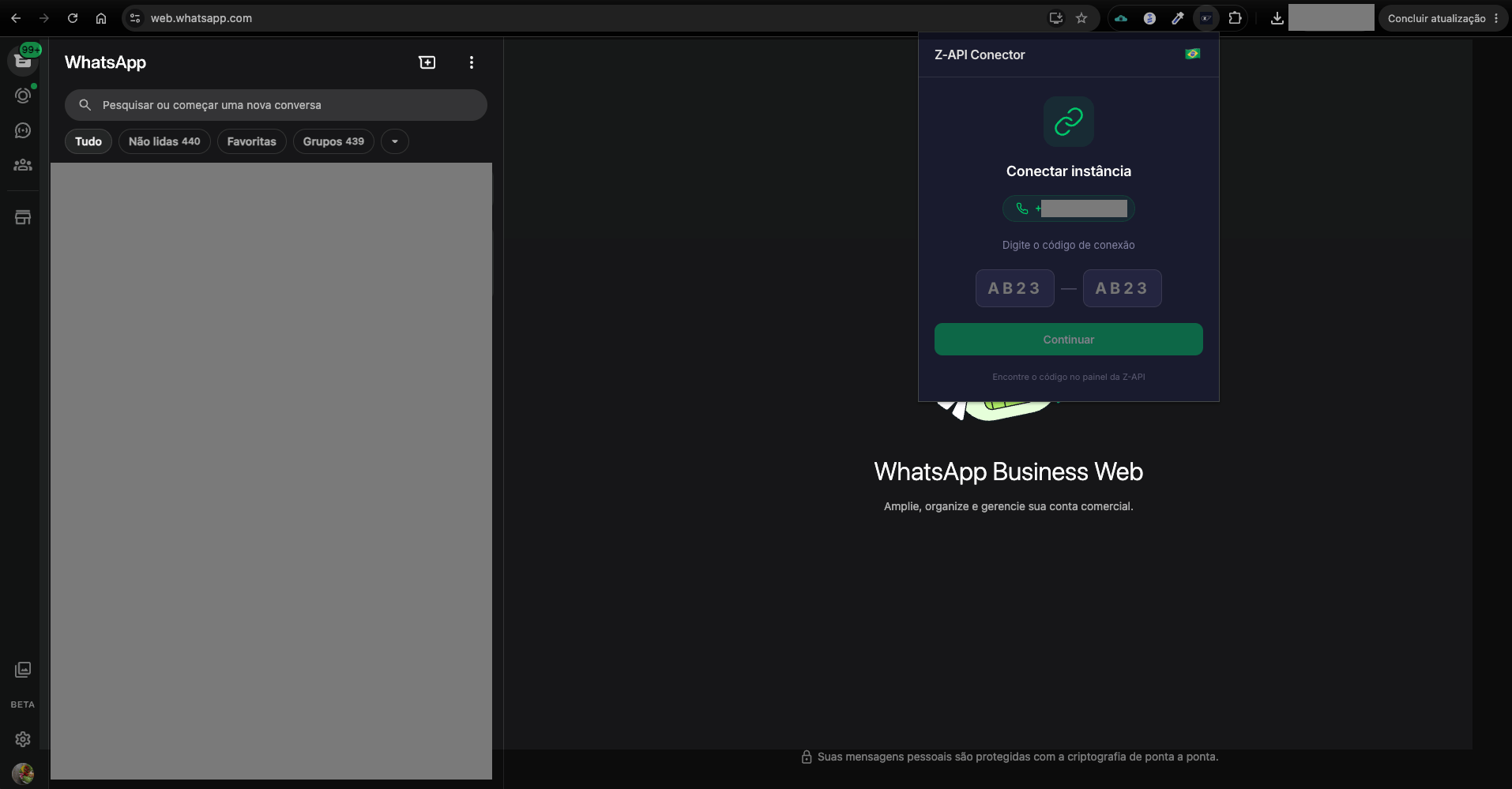
With WhatsApp Web open, the customer clicks the **Z-API Conector** extension icon in the Chrome toolbar. The extension detects the logged-in number and displays the fields to type the connection code (format `XXXX-XXXX`):
### 4. Confirm and connect to Z-API
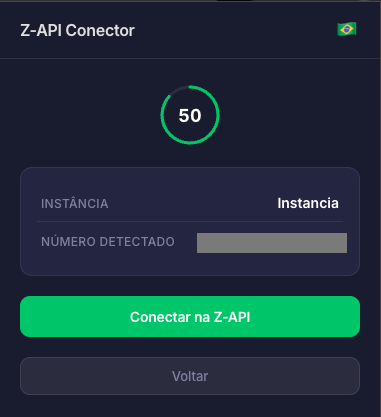
After entering the code, the extension displays a confirmation screen with the instance name, detected number, and a countdown timer. The customer clicks **"Conectar na Z-API"**:
The active WhatsApp Web session is terminated and the number becomes connected to the Z-API instance.
***
## Final considerations
* The partner's backend should be the only one calling the [`extension-token`](/en/instance/extension-token) endpoint; never expose this call on the frontend
* Guide your customer to have WhatsApp Web open and logged in **before** entering the code in the extension