> ## Documentation Index
> Fetch the complete documentation index at: https://developer.z-api.io/llms.txt
> Use this file to discover all available pages before exploring further.
# Connection via Z-API Conector Extension
## Introduction
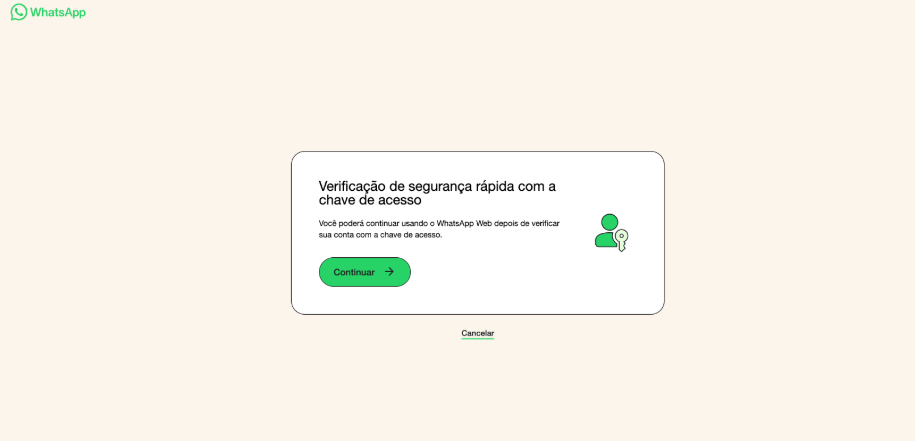
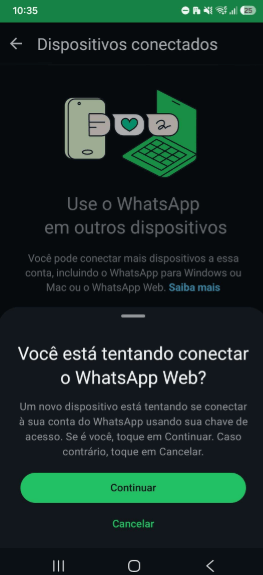
On some devices, WhatsApp now requires an additional verification when attempting to connect to WhatsApp Web. When this happens, you will see one of these two signs:
**In the browser** — the passkey security verification screen:
**On the phone** — a notification asking to confirm the new connection:
This behavior **does not affect all devices** — only those where WhatsApp requires phone validation to authorize a new WhatsApp Web connection.
If you encounter either of these screens when trying to connect your Z-API instance, use the **[Z-API Conector](https://chromewebstore.google.com/detail/iopmkohngoecmepoheapifkafbeomphn)** Chrome extension. Through it, you can authenticate the connection securely, without needing to scan a QR Code.
***
## How it works
The connection flow via extension involves three main steps:
1. **Install the extension** [Z-API Conector](https://chromewebstore.google.com/detail/iopmkohngoecmepoheapifkafbeomphn) on Chrome
2. **Get the token** — via the dashboard or via API
3. **Enter the token** in the extension to authenticate the instance
***
## Step 1 — Install the extension
Go to the Chrome Web Store and install the **[Z-API Conector](https://chromewebstore.google.com/detail/iopmkohngoecmepoheapifkafbeomphn)** extension.
After installing, the extension icon will appear in the Chrome toolbar.
***
## Step 2 — Get the extension token
The token can be obtained in two ways:
### Option A — Via Z-API Dashboard
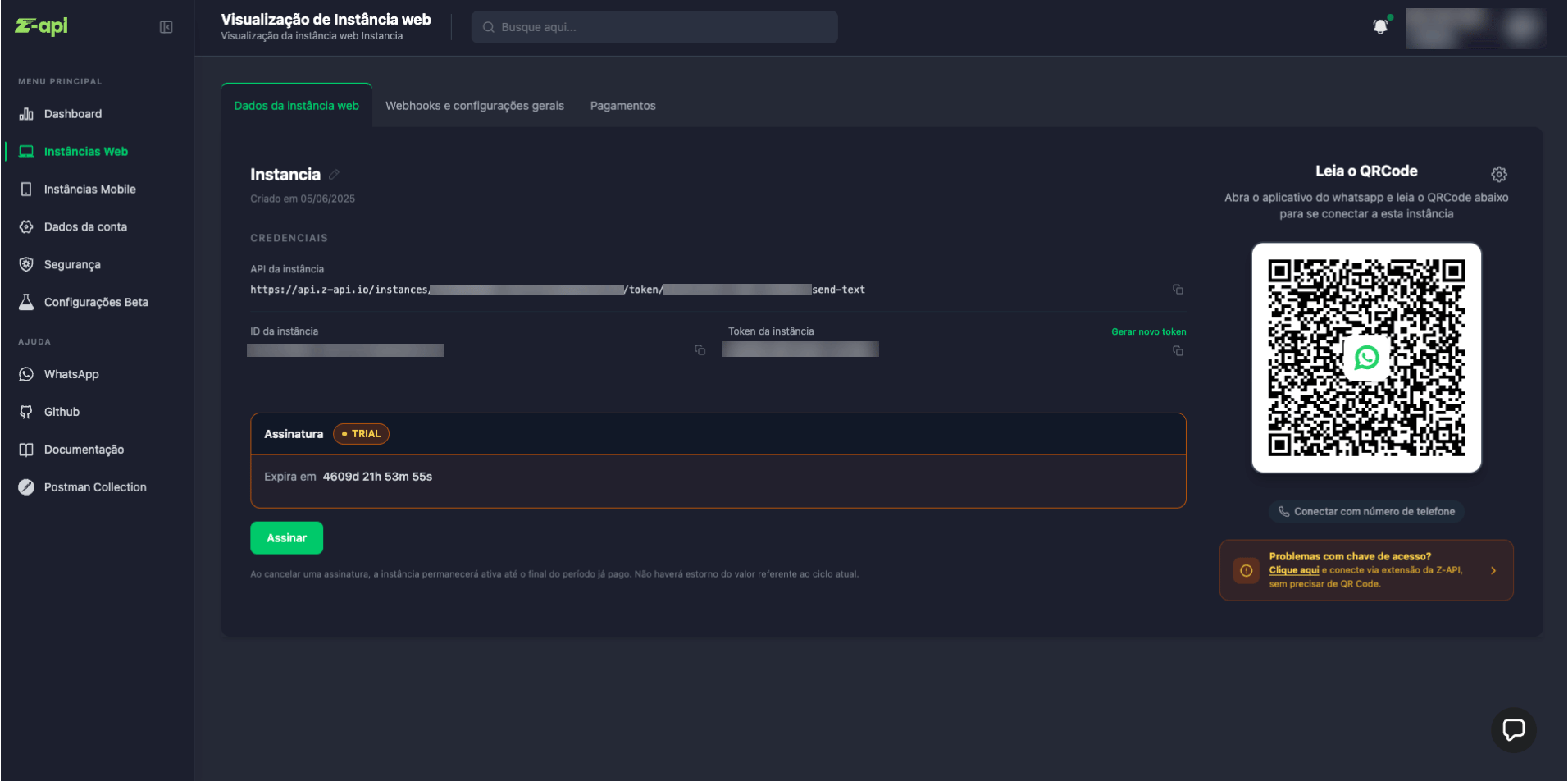
When the instance is disconnected, the dashboard displays a banner:
> **"Problems with access key? Click here and connect via Z-API extension, without needing a QR Code."**
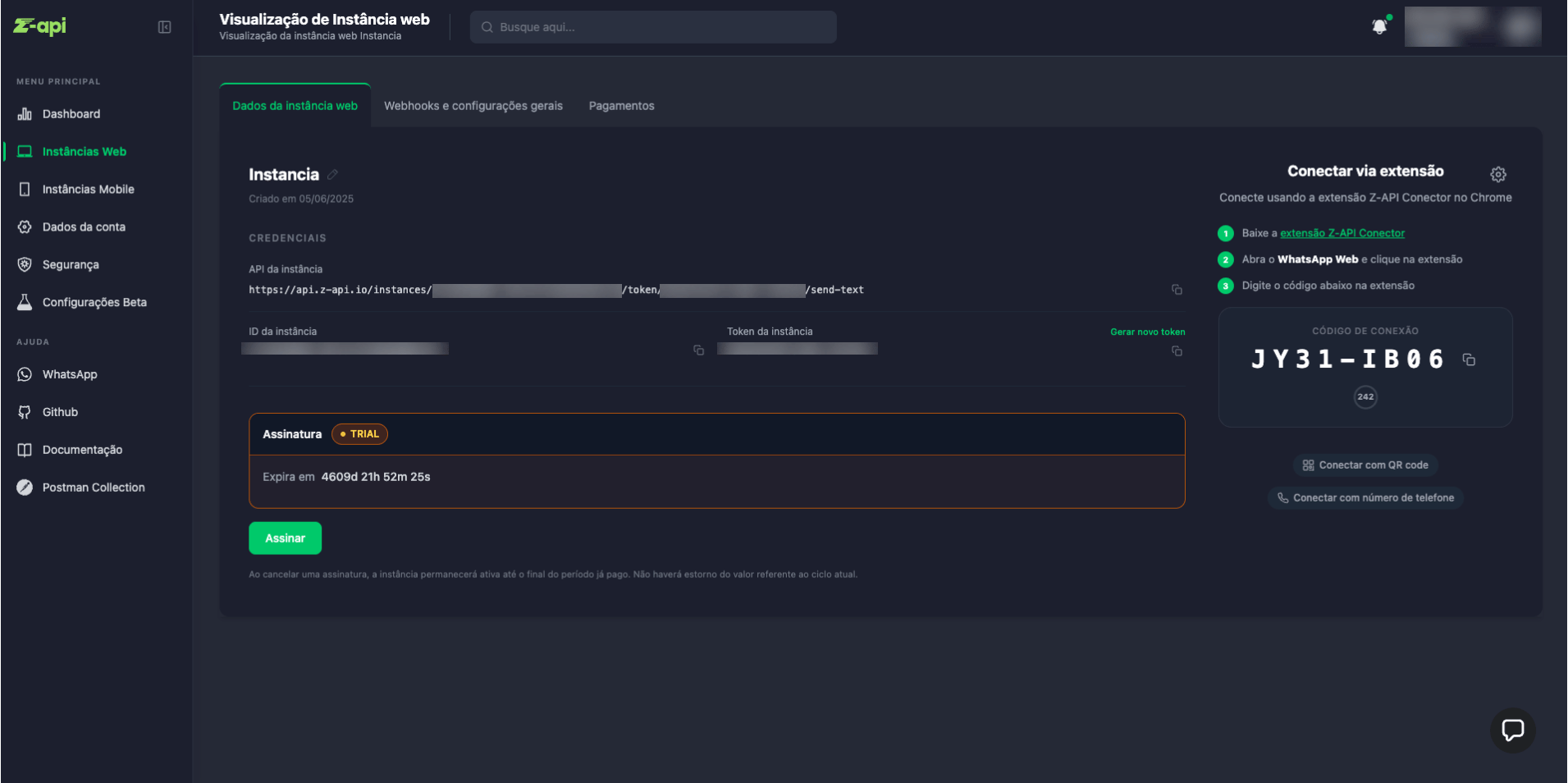
Click **"Click here"** — the dashboard will display the **"Connect via extension"** screen with the generated **Connection Code**:
After clicking, the screen will update showing the code to be entered in the extension:
The dashboard itself already guides the next steps:
1. Download the Z-API Conector extension
2. Open WhatsApp Web and click the extension
3. Type the displayed code in the extension
### Option B — Via API
Make a request to the token generation endpoint:
```bash theme={"theme":{"light":"github-light","dark":"poimandres"}}
curl --location 'https://api.z-api.io/instances/{instanceId}/token/{token}/extension-token' \
--header 'Client-Token: YOUR_CLIENT_TOKEN'
```
The response will be:
```json theme={"theme":{"light":"github-light","dark":"poimandres"}}
{
"token": "FA48-HS63",
"expiresAt": 1782851138085
}
```
Access code to be entered in the extension
Unix timestamp (in milliseconds) with the token expiration date
The token has a limited validity period. Use it before it expires. After expiration, generate a new token and repeat the process.
Full endpoint documentation: [Generate extension token](/en/instance/extension-token)
***
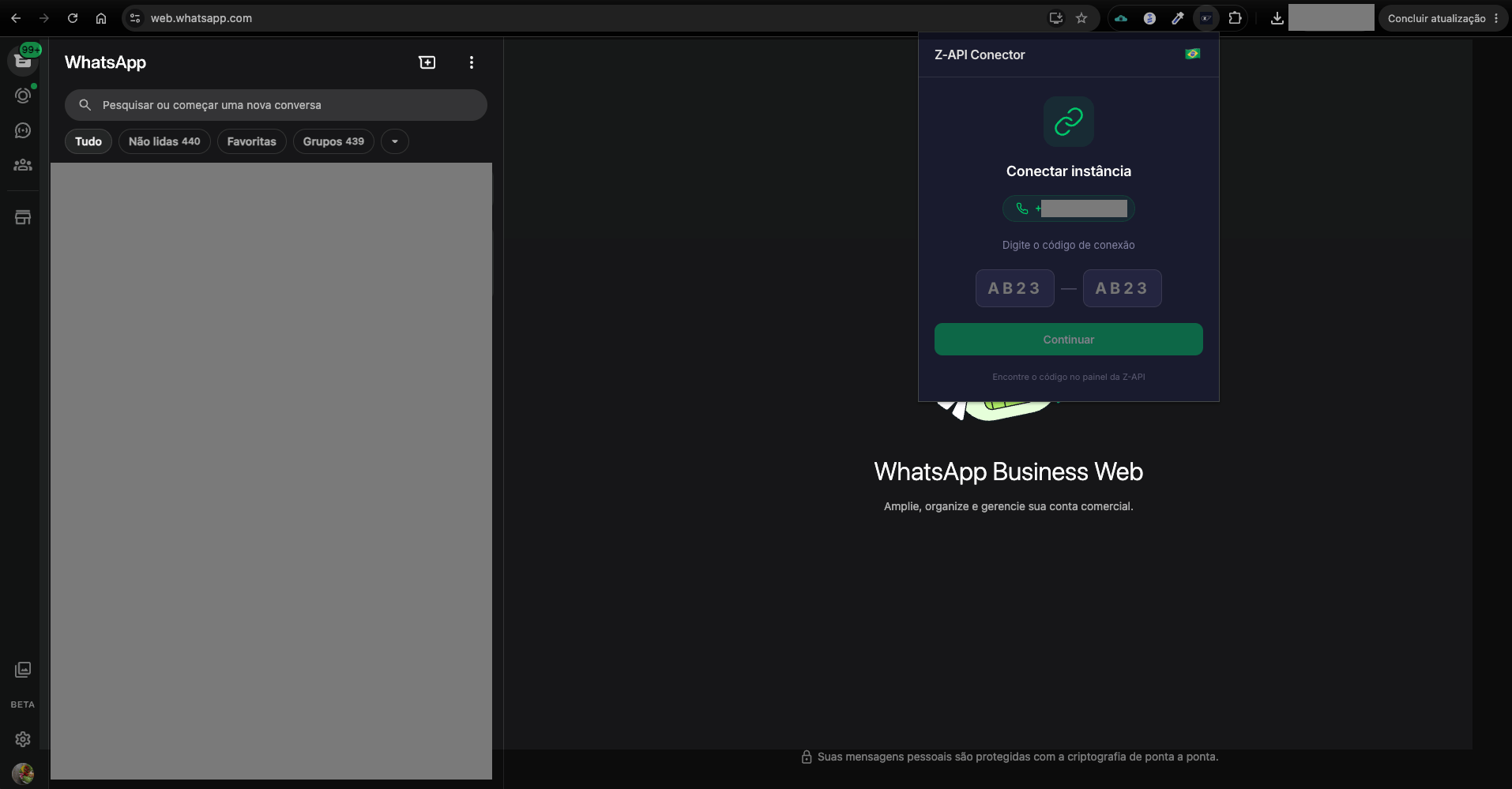
## Step 3 — Enter the code in the extension
1. Open **[web.whatsapp.com](https://web.whatsapp.com/)** in Chrome, logged in with the number you want to connect to the Z-API instance
2. Click the **Z-API Conector** extension icon in the Chrome toolbar
3. The extension will automatically detect the logged-in number and display the connection code fields
4. Type the code obtained from the dashboard or API (format: `XXXX-XXXX`) and click **Continue**
The extension will validate the code and proceed to the confirmation screen.
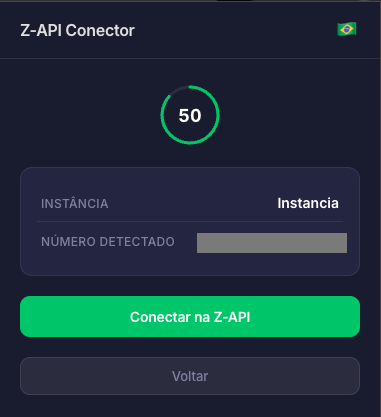
## Step 4 — Confirm and connect to Z-API
After entering the code, the extension will display a confirmation screen with:
* The **instance** name that will be connected
* The **detected number** from WhatsApp Web
* A **countdown timer** with the remaining token validity time
Click **"Conectar na Z-API"**. The active WhatsApp Web session will be terminated and the number will be connected to the Z-API instance.
***
## Final Considerations
This new authentication was developed to comply with WhatsApp's passkey-based authentication requirement. The Z-API Conector extension ensures this process is carried out securely and integrated with your instance, without exposing sensitive credentials.
The extension token is valid for up to **5 minutes**. After that, a new one must be generated.