
1. Open Connector settings
In Claude, go to Settings → Connectors. Click the Add menu in the top right corner, and select Add custom connector.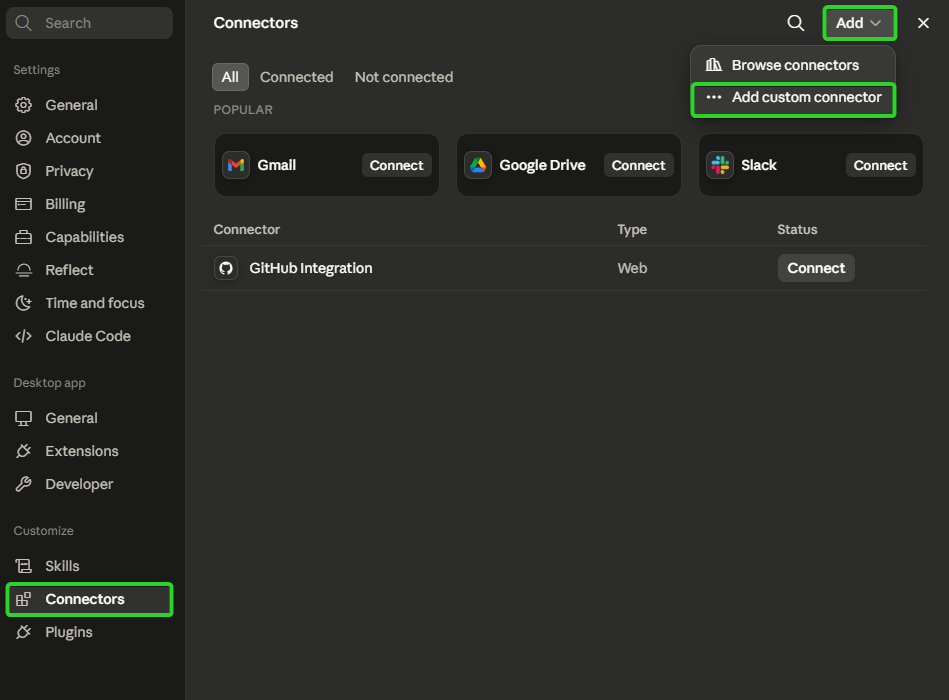
2. Fill in the server name and URL
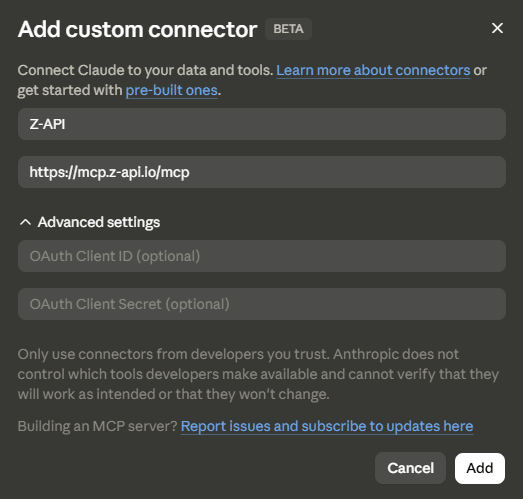
In the Add custom connector window, enter:- Name: whatever name you prefer — we use
Z-APIhere just as a suggestion, to make it easier to identify later - MCP server URL:
https://mcp.z-api.io/mcp
3. Link your instance
Open the Z-API connector in the list and click Connect.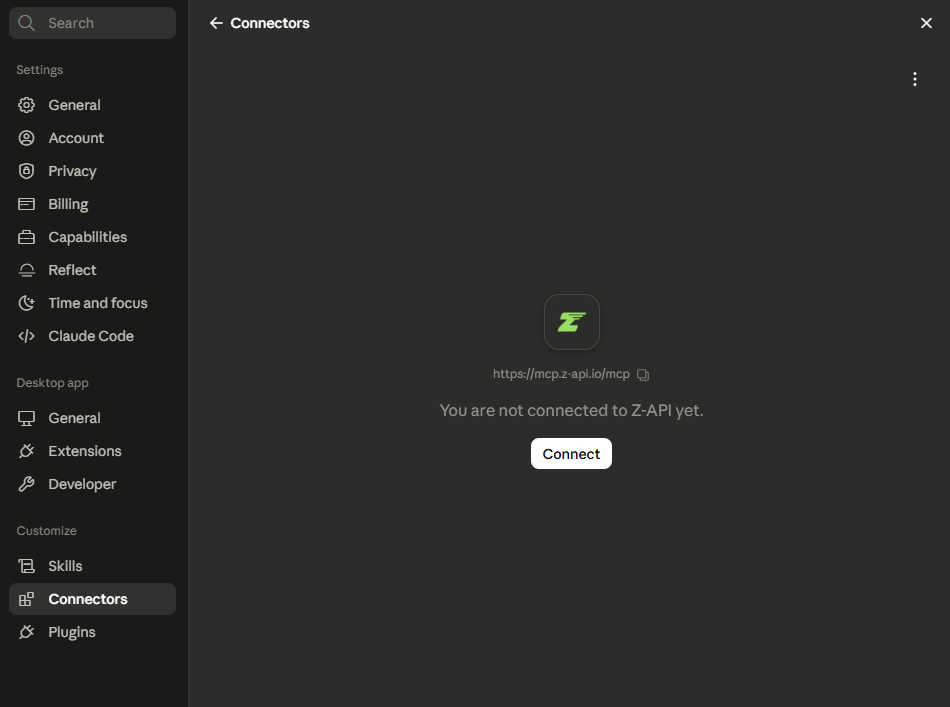
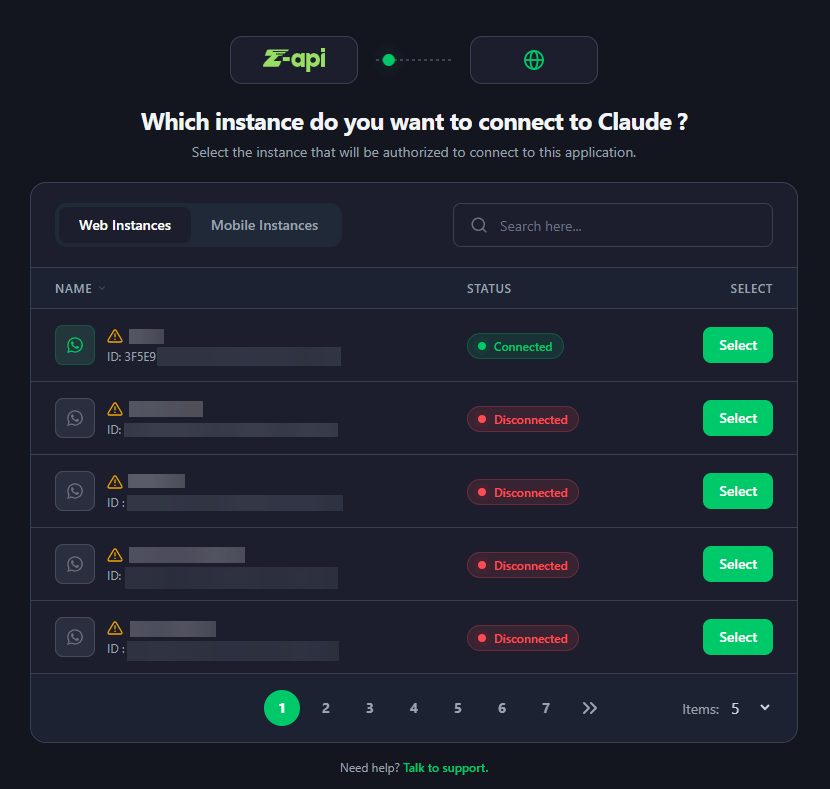
If the selected instance is disconnected from the application (QR Code not scanned), linking the MCP connector won’t connect the application automatically. You’ll still need to go to the Z-API dashboard and scan the QR Code the usual way to bring the instance online.
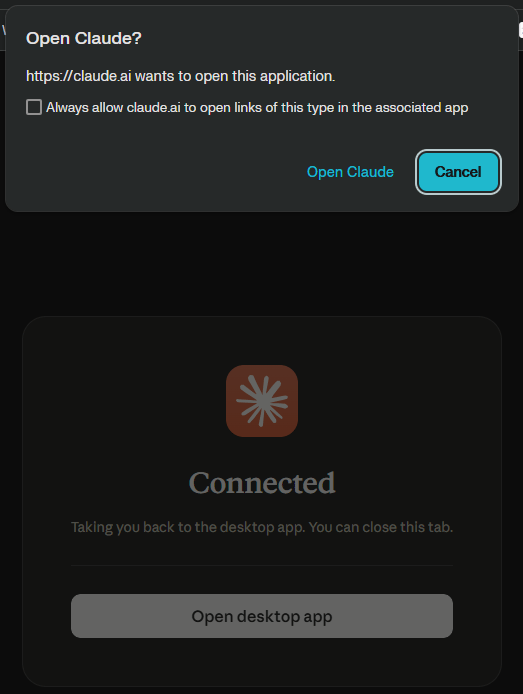
4. Ready to use
Once the instance is selected, the connection is established automatically, making all MCP-compatible Z-API endpoints available — such as sending text, image, and video messages, group management, and other currently supported features — for direct use by Claude. To use the connector in a conversation, click the + icon next to the message field, go to Connectors, and turn on the Z-API toggle.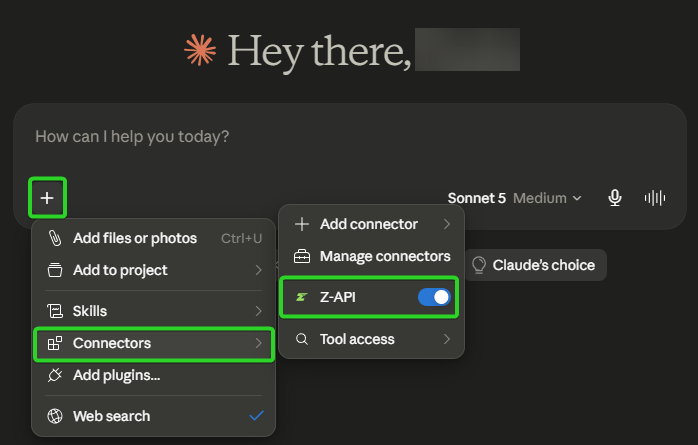
Once connected, the AI app will show up under the Connected Apps tab, inside your instance’s dashboard on Z-API. That’s where you can check when it was connected, its last use, and remove access whenever you want.
Authentication
The connection is made via OAuth, linking the chosen Z-API instance directly to the connector in your AI app. The AI never accesses your application password or credentials directly — only the authorized endpoints of the selected instance.Frequently asked questions
I disconnected the application from the instance (scanned the QR Code again) in the Z-API dashboard. Does that disconnect the AI app too?
I disconnected the application from the instance (scanned the QR Code again) in the Z-API dashboard. Does that disconnect the AI app too?
No. These are two independent connections. Disconnecting the application from the instance doesn’t remove the AI app or revoke its authorization — access stays active until you remove it manually from the Connected Apps tab in the instance dashboard.
How do I revoke the AI app's access without disconnecting the application?
How do I revoke the AI app's access without disconnecting the application?
Go to your instance’s dashboard on Z-API, open the Connected Apps tab, and remove the app from there. This ends access immediately, without affecting the application connection.
The AI can't send a message — what should I check?
The AI can't send a message — what should I check?
(1) Is the Z-API connector enabled for this conversation? (2) Is the selected instance connected and active in the Z-API dashboard? (3) Has the link/token expired? If so, unlink and reconnect the connector in the AI app’s settings. If the issue persists, contact technical support.
Do I need to add the connector in every conversation?
Do I need to add the connector in every conversation?
No. Once added and linked, the connector remains available to be enabled in any new conversation through the connectors menu.