Introduction
On some devices, WhatsApp now requires an additional verification when attempting to connect to WhatsApp Web. When this happens, you will see one of these two signs: In the browser — the passkey security verification screen: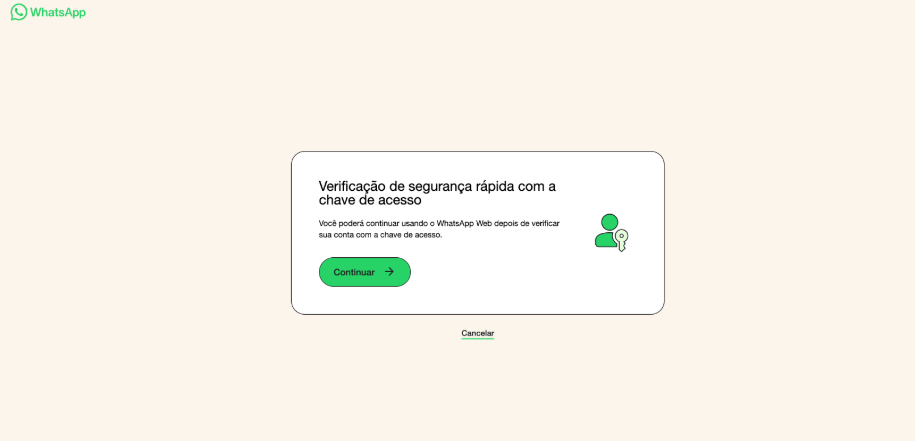
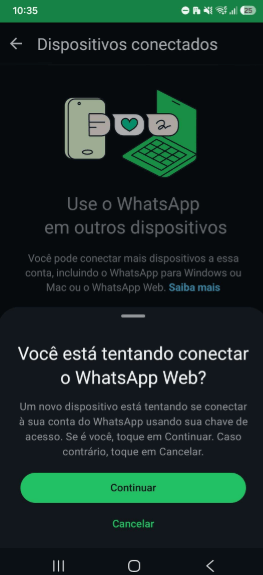
This behavior does not affect all devices — only those where WhatsApp requires phone validation to authorize a new WhatsApp Web connection.
How it works
The connection flow via extension involves three main steps:- Install the extension Z-API Conector on Chrome
- Get the token — via the dashboard or via API
- Enter the token in the extension to authenticate the instance
Step 1 — Install the extension
Go to the Chrome Web Store and install the Z-API Conector extension. After installing, the extension icon will appear in the Chrome toolbar.Step 2 — Get the extension token
The token can be obtained in two ways:Option A — Via Z-API Dashboard
Here is a step-by-step video on how to connect via the Z-API dashboard: When the instance is disconnected, the dashboard displays a banner:“Problems with access key? Click here and connect via Z-API extension, without needing a QR Code.”Click “Click here” — the dashboard will display the “Connect via extension” screen with the generated Connection Code:
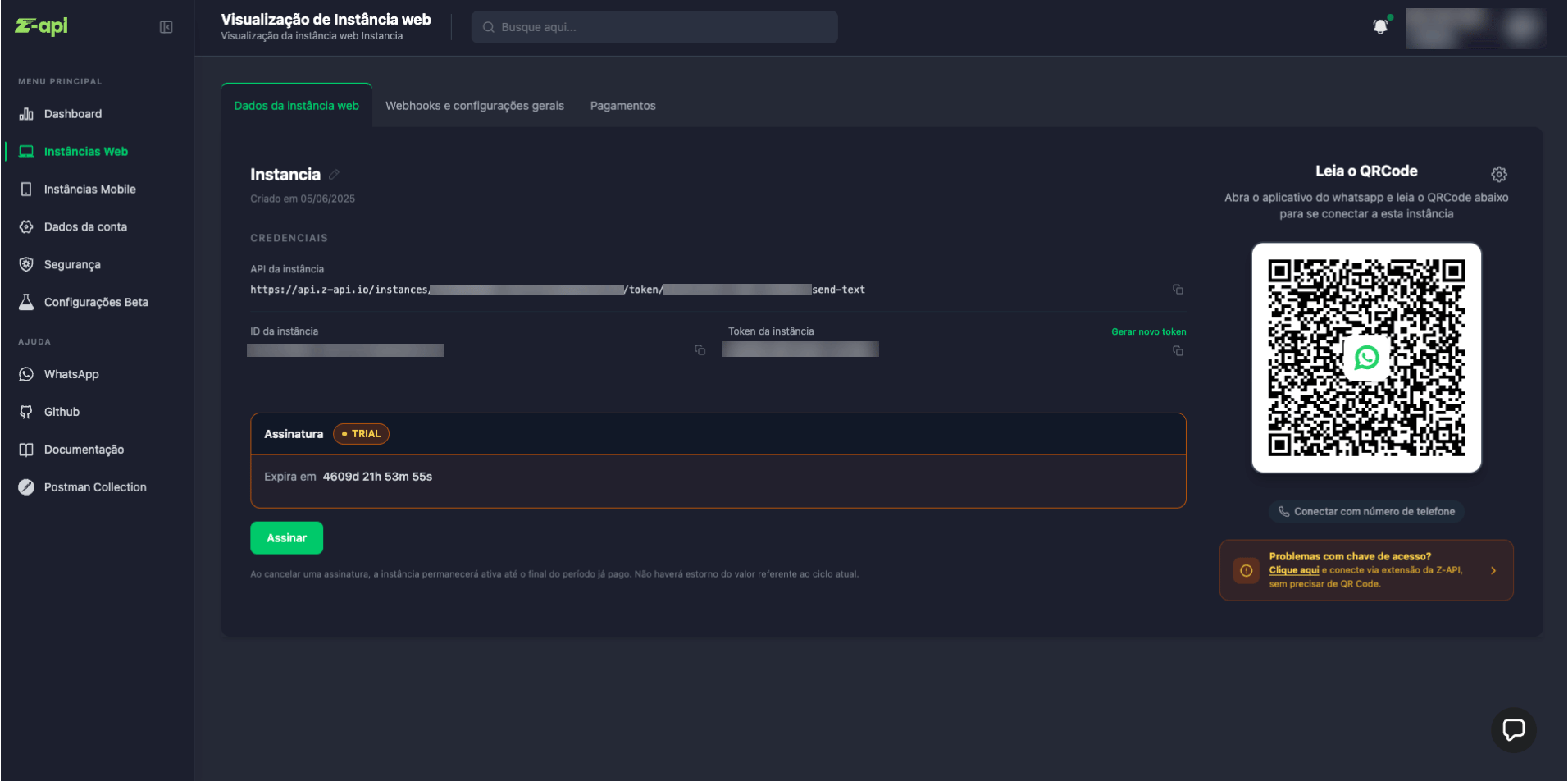
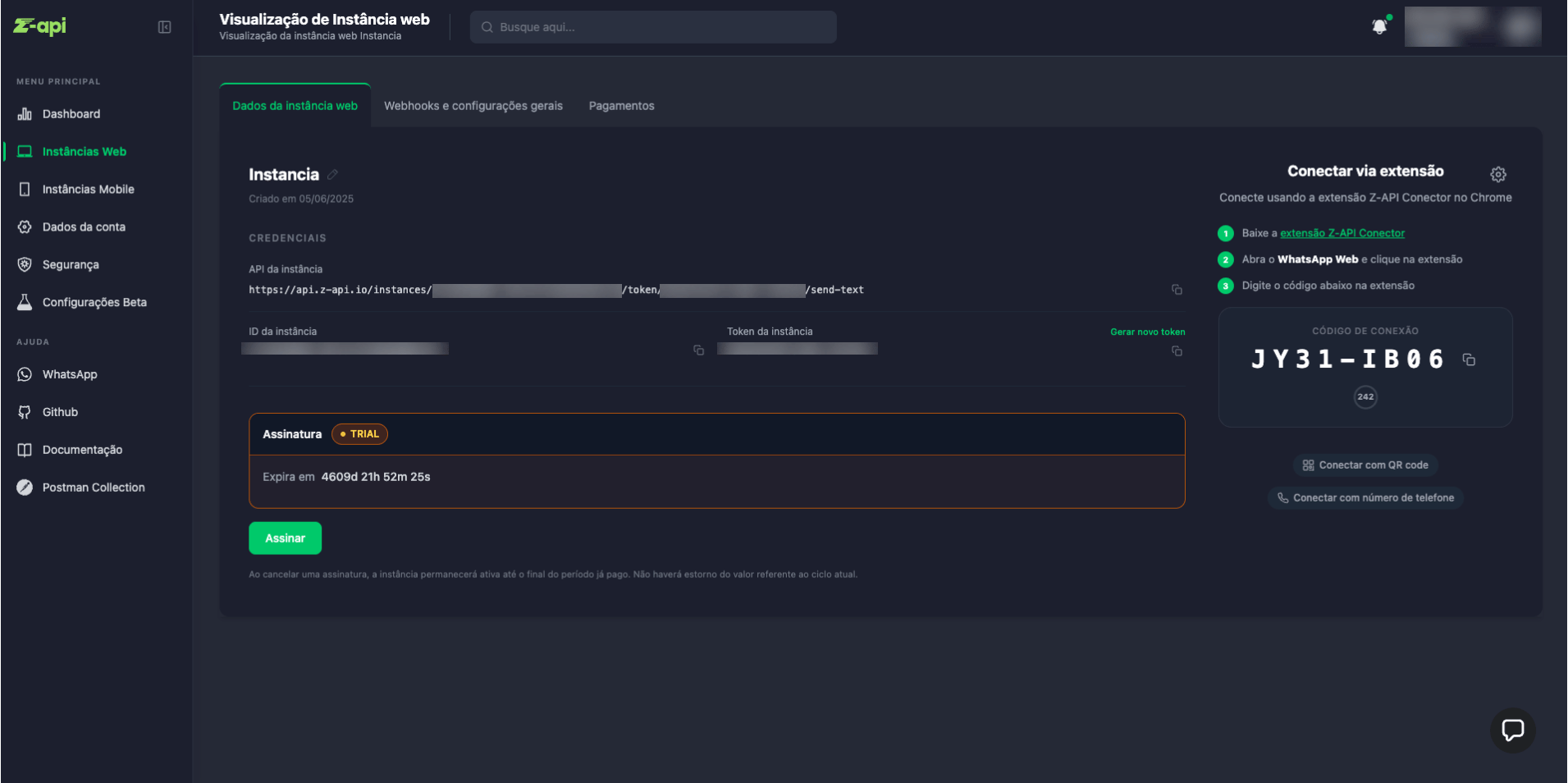
- Download the Z-API Conector extension
- Open WhatsApp Web and click the extension
- Type the displayed code in the extension
Option B — Via API
Make a request to the token generation endpoint:string
Access code to be entered in the extension
number
Unix timestamp (in milliseconds) with the token expiration date
Step 3 — Enter the code in the extension
- Open web.whatsapp.com in Chrome, logged in with the number you want to connect to the Z-API instance
- Click the Z-API Conector extension icon in the Chrome toolbar
- The extension will automatically detect the logged-in number and display the connection code fields
- Type the code obtained from the dashboard or API (format:
XXXX-XXXX) and click Continue
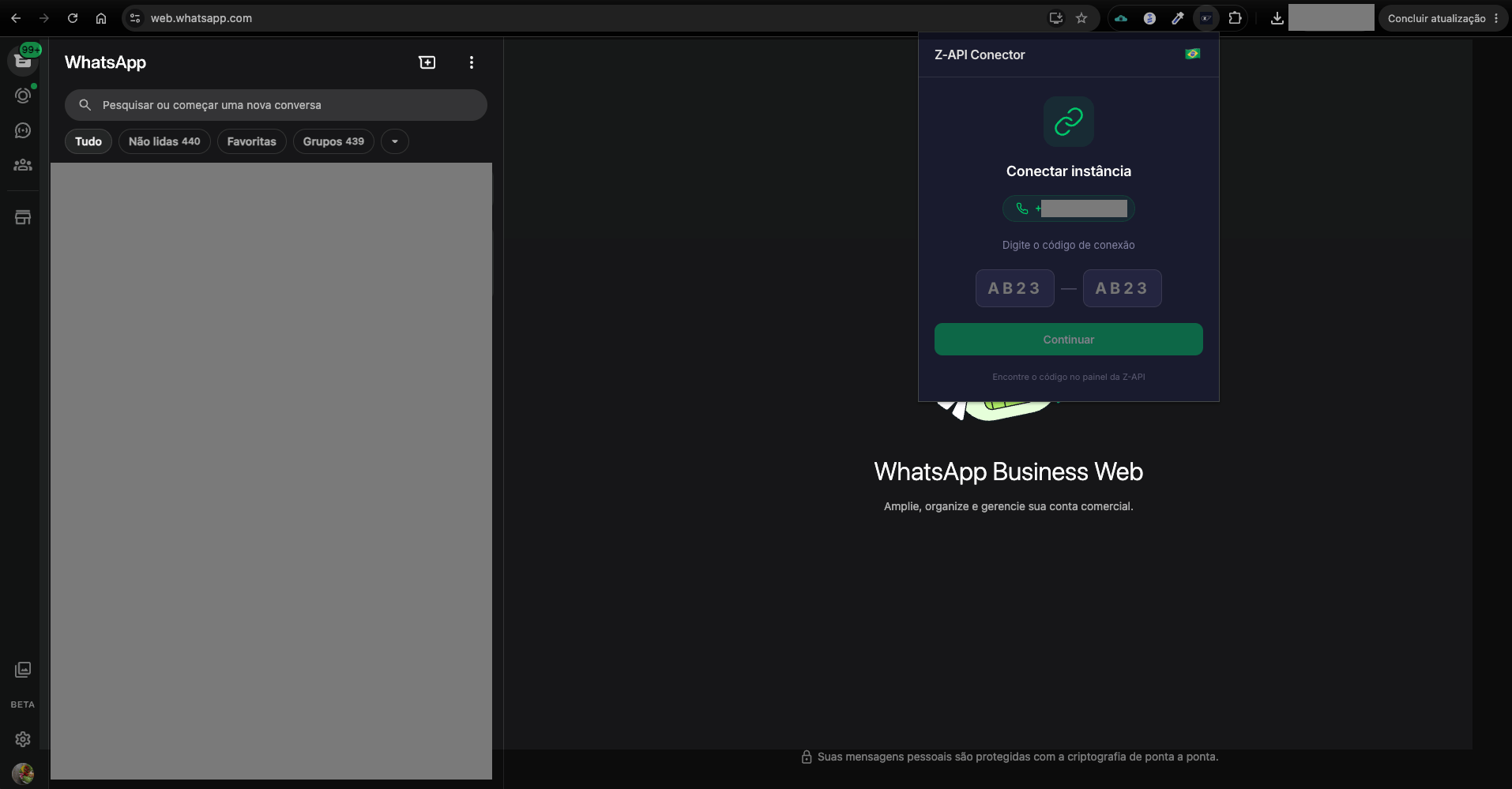
Step 4 — Confirm and connect to Z-API
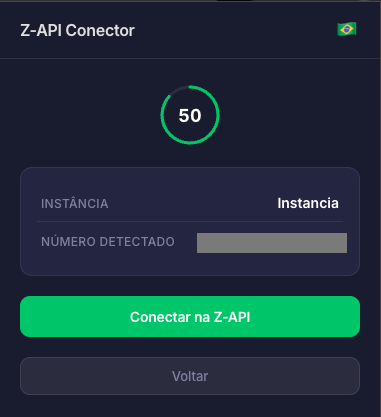
After entering the code, the extension will display a confirmation screen with:- The instance name that will be connected
- The detected number from WhatsApp Web
- A countdown timer with the remaining token validity time