
Messages
Send sticker
Send a sticker to a contact or group on WhatsApp
POST
Send sticker
Overview
Method responsible for sending stickers to your chats. You can work with stickers in 2 ways:- By Link: if you have the sticker hosted somewhere on the internet, just send the link;
- By Base64: if you want to send the sticker in Base64 format.
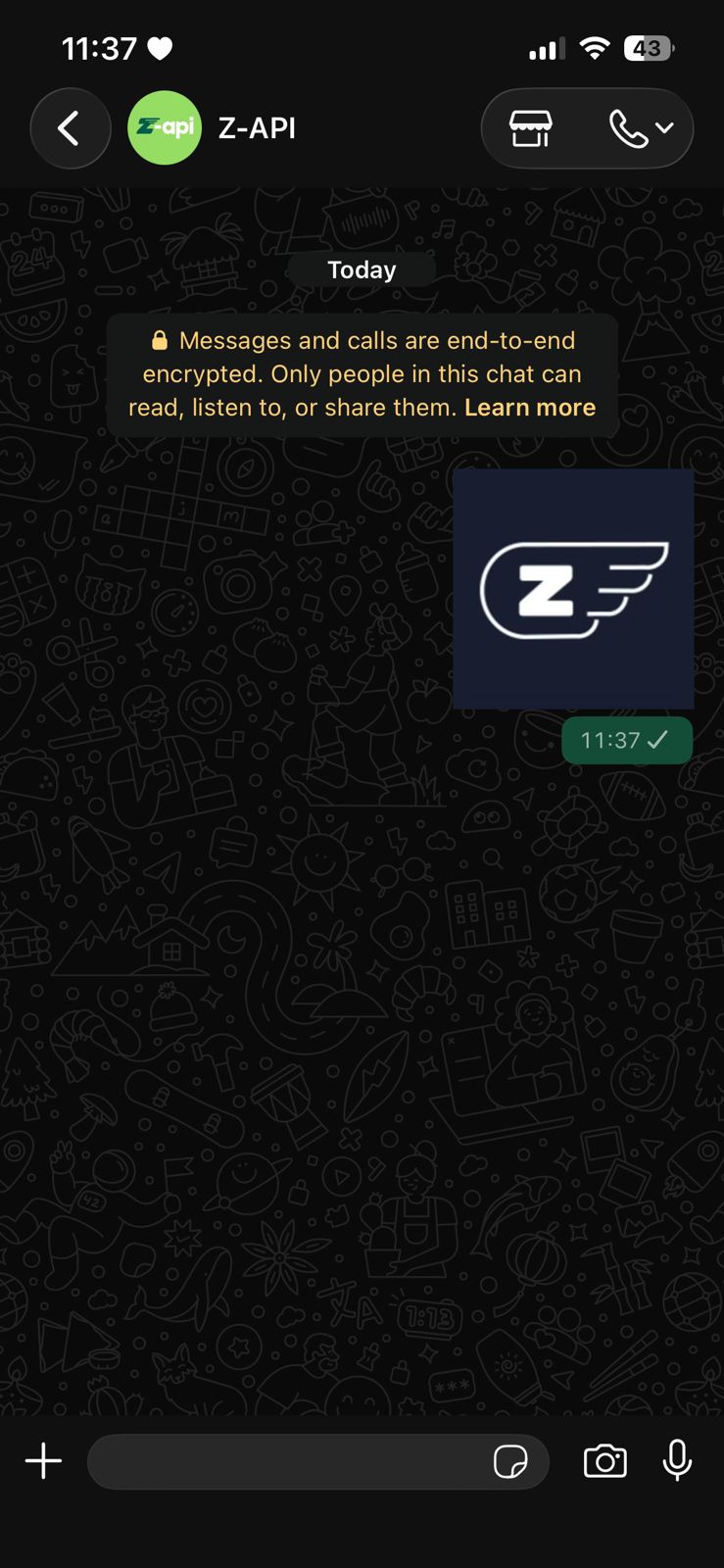
Example on WhatsApp
Attributes
Header
string
required
Your instance ID. Available in the Z-API panel under Instances.
string
required
Your Z-API instance token.
Required
string
required
Recipient’s phone number (or group ID for group messages) in DDI DDD NUMBER format. E.g.: 551199999999
string
required
Sticker link or Base64
Optional
string
Attribute used to reply to a chat message, just add the messageId of the message you want to reply to
number
Delay added to the message. You can choose between a range of 1 to 15 sec, meaning how many seconds it will wait before sending the next message. (E.g.: “delayMessage”: 5). The default delay if not provided is 1 to 3 sec
string
Sticker author name